Restoring a Backup in Softaculous
Softaculous allows you to restore your website from a previous backup with just a few clicks. This guide walks you through the restoration process.
Before You Restore
- Restoring will overwrite your current installation
- Any changes made after the backup was created will be lost
- Consider creating a fresh backup before restoring an older one
Step-by-Step Restoration Process
Step 1: Access Softaculous
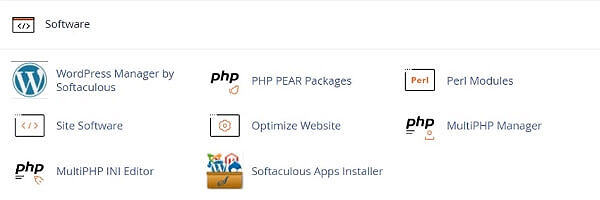
- Log into your cPanel account
- Navigate to the Software section
- Click on Softaculous Apps Installer
Step 2: Access Backups
- Click the Backups icon in the top navigation bar

Step 3: Select Your Backup
- Browse the list of available backups
- Backups are organized by installation and date
- Find the backup you want to restore
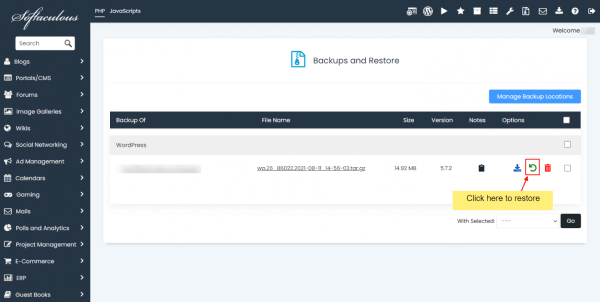
Step 4: Restore the Backup
- Click the Restore button (circular arrow icon) next to your chosen backup
- Confirm the restoration when prompted
Step 5: Wait for Completion
- A progress bar will show the restoration status
- Do not close your browser during this process
- When complete, you'll see the message: "Your backup has been restored successfully"
What Gets Restored?
Depending on your backup settings, restoration includes:
- Database - All database tables and data
- Files - All installation files and uploads
- Configuration - Settings and configurations
Troubleshooting
- Restoration Failed - Check that you have enough disk space
- Missing Backup - Backups may have been deleted by retention policies
- Database Errors - Contact support if database issues persist
Need help? Contact our support team for assistance.