
What is the Softaculous Task List?
The Task List in Softaculous allows you to monitor the progress of long-running operations. When you perform actions like installing, upgrading, or backing up applications, Softaculous processes these tasks in the background. The Task List page shows you the real-time status of these operations.
Accessing the Task List
- Log into your cPanel account
- Navigate to the Software section
- Click on Softaculous Apps Installer
- Click the Task List icon in the top navigation
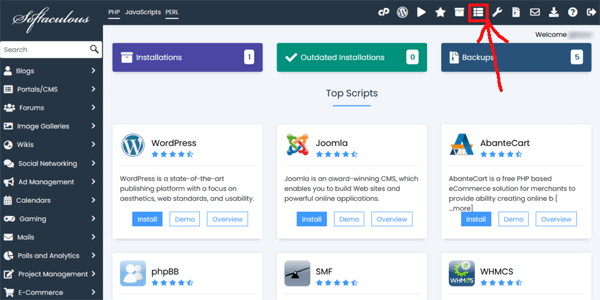
Understanding Task Status
Each task in the list displays:
- Task Type - What operation is being performed (install, backup, upgrade, etc.)
- Application Name - The software being processed
- Progress Bar - Visual indicator of completion percentage
- Status - Current state (Running, Completed, Failed)
- Started At - When the task began
Common Tasks You'll See
- Installation - Installing a new application like WordPress
- Backup - Creating a backup of your installation
- Restore - Restoring from a previous backup
- Upgrade - Updating an application to a newer version
- Clone - Creating a copy of an existing installation
Tips for Using the Task List
- Do not close your browser while critical tasks are running
- If a task appears stuck, wait a few minutes before trying again
- Failed tasks will show an error message - check the details for troubleshooting
- Completed tasks are kept in the list for reference
If you encounter persistent issues with tasks failing, please contact our support team for assistance.